How to connect WhatsApp to WatMark and keep your number
Sign up for WatMark and connect WhatsApp through Meta’s Embedded Signup, using the number you already have.
TutorialPublished Page updated
Chapters
How do you connect WhatsApp to WatMark without changing your number?
Sign up at app.watmark.com with your WhatsApp number and the six-digit code you receive. Name your workspace, choose WhatsApp Business, then Connect with Meta. Log in with Facebook, select your business portfolio, choose Connect a WhatsApp Business app, and scan the QR code. Where Meta supports Coexistence, the app keeps working on the same number.
Connect your number, step by step
Choose a time to play the tutorial from that moment.
Open app.watmark.com
Open your browser, type app.watmark.com and press Enter.
Sign up with WhatsApp
Select Sign up, enter your WhatsApp number, then click Sign up with WhatsApp.
Enter the six-digit code
WatMark sends a code to your WhatsApp. Enter it and click Verify and continue.
Name your workspace
Enter your first name and business name. Email and industry are optional.
Choose WhatsApp Business
It is the recommended channel, and takes about three minutes.
Click Connect with Meta
Review the three steps on screen, then click Connect with Meta.
Log in with Facebook
Click Continue with Facebook, review the permissions and click Continue.
Select your business and number
Select your business portfolio, choose Connect a WhatsApp Business app, then click Next.
Scan the QR code
Scan it from Linked devices in your WhatsApp Business app to link your number.
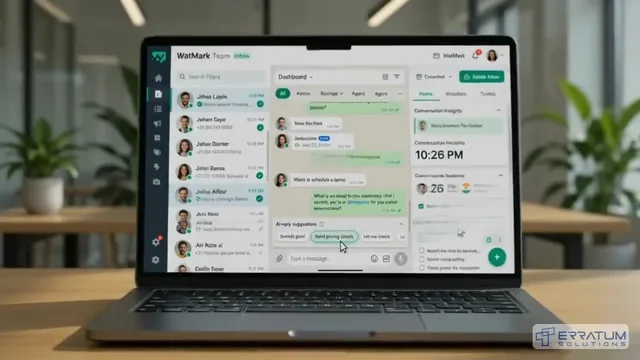
Start in the team inbox
Your number is connected, and customer messages now land in the shared team inbox.
What stays the same
- Your number
- Customers keep writing to the number they already know.
- The Business app
- Where Coexistence is supported, you can keep using the WhatsApp Business app on your phone.
- Not every app feature carries over
- Some WhatsApp Business app features are not available through the Cloud API.
If something goes wrong
- WatMark is still waiting for Meta
- Finish the steps in Meta’s window, then send your number a test message. If it does not show up in the inbox within a few minutes, choose Set it up with us.
- Meta does not support my number for Coexistence
- Support depends on the number and region. You can connect another number that can receive a code by SMS or call.
- The number shows as disconnected
- Choose Connect again and repeat the Meta steps to keep receiving messages.
- I would rather have help
- Choose Set it up with us, and the WatMark team messages you on WhatsApp to finish the setup.
Frequently asked questions
Can I keep using the WhatsApp Business app after connecting to WatMark?
Yes, where Meta supports Coexistence for your number and region. Not every Business app feature is available through the Cloud API.
Do I need a new phone number for the WhatsApp Business API?
No, if your current WhatsApp Business number is supported. The tutorial connects an existing number.
What is WhatsApp Coexistence?
Coexistence lets a supported WhatsApp Business number stay in the WhatsApp Business app while it is also connected to a platform such as WatMark. Availability depends on Meta.
Do I need a Meta business account first?
You need a Facebook account that can manage your business. You pick or create the Meta business account during the connection.
How long does it take to connect WhatsApp?
About three minutes, according to the setup screen. The tutorial shows the whole flow in 86 seconds.
Does connecting cost anything?
The free trial is 14 days, no card needed. After that, plans start at AED 99 a month. Meta bills messages at its own rates, and WatMark adds no fee to them.